Please visit our video tutorial at: Artsystems Pro: Navigation I--The Main Toolbar
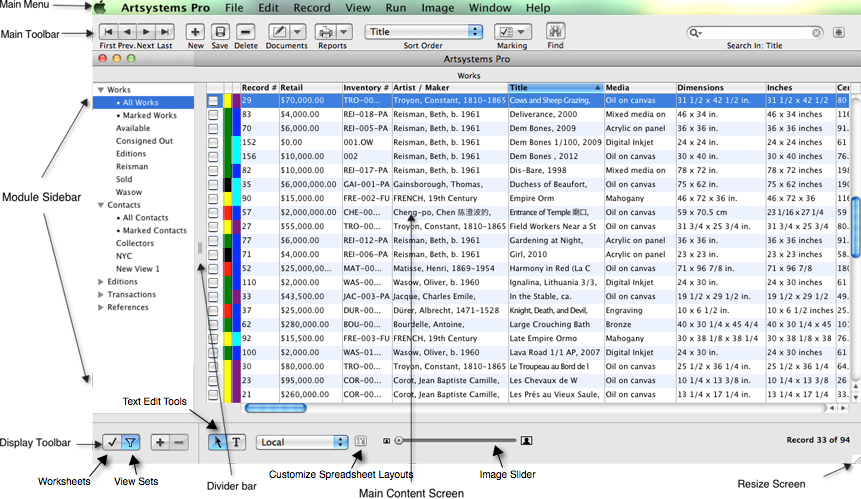
The Artsystems Pro Menu displays to the right of the Apple symbol in the upper left corner of your computer when Artsystems Pro is open. Clicking on an item in the Menu gives access to the inner workings of Artsystems Pro, enabling users to set preferences, edit tables, view records' editing history, etc.
The Main Toolbar is located just below the Menu. The Main Toolbar contains quick access buttons to create new records, run reports, sort records, etc.
The Main Content Screen located on the right side of the screen displays all records in Spreadsheet View for the selected module.
The Module Sidebar (at the left) displays all modules (and any saved Worksheets or ViewSets) available in Artsystems Pro; Works, Contacts, Editions, Transactions, and References. The Module Sidebar controls the viewable information in the Main Content Screen. First, click the Arrow next to a specific module name to open that module. For example, in the Works module, clicking All Worksdisplays all data associated with that module in the Spreadsheet View.
The Display Toolbar at the bottom of the screen provides additional tools for customizing the Spreadsheet View and helps to create groups of records from any module (i.e. data sets) . The first component of the Display Toolbar is the Module Display Toolbar used to toggle back and forth between saved Worksheets and saved View Sets. You can also create New View Sets by clicking the plus icon (+) or delete saved Worksheets or View Sets by clicking the minus icon (-).
The second component of the Display Toolbar works in conjunction with the Main Content Screen (a.k.a. Spreadsheet View). These tools allow you to edit text for certain columns in the Spreadsheet View, select a saved Spreadsheet Layout, Customize a Spreadsheet Layout and open the Image Slider.
Use the Divider bar to resize the width of the Module Sidebar and Main Content Screen. Click the center of the Divider bar and drag to the left or right.
NOTE: The overall program screen may be resized by clicking and dragging the bottom right corner of the screen.